A tool for easily running live streams in Scratch. It uses Scratch cloud variables to support simple live streaming, preset chat messages, movable on-screen sprites, and preconfigured slides.
Links
You need to be logged in with a Scratcher account.
Overview
This is a tool for running simple live streams in Scratch. Cloud variables are used to transfer stream data from the streamer to viewers.
On Scratch, you can send preset chat messages, move your character, show preloaded slides, and play BGM. Viewers can also respond using preset chat messages prepared by the streamer.
How to Watch
This project uses cloud variables to send and receive data. Users who are not Scratcher members cannot use cloud variables and therefore cannot access the stream.
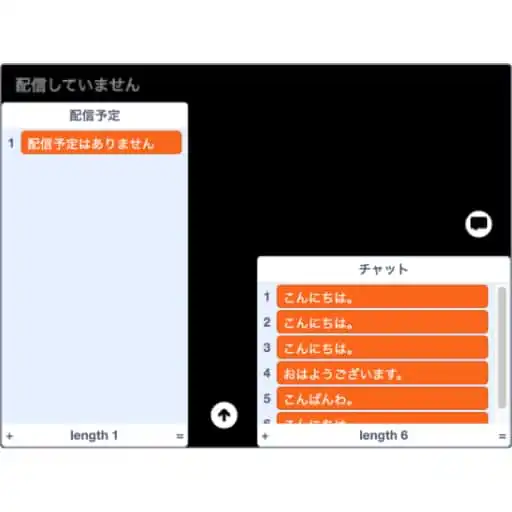
Press the green flag to automatically switch to viewer mode. If the streamer is currently live, the stream screen is shown. Otherwise, a list of scheduled streams is displayed.
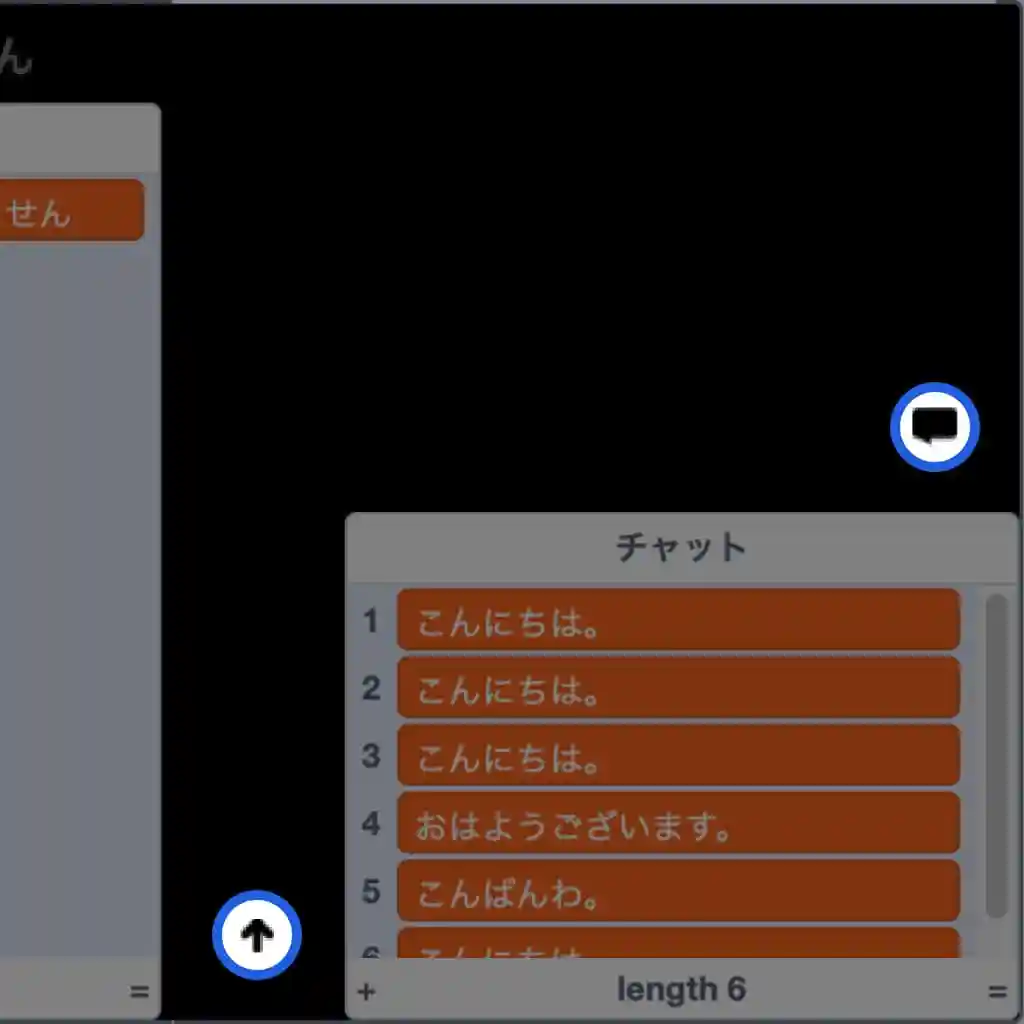
While watching, you can use the preset messages added by the streamer to chat. Press the chat icon to see your own and other viewers’ messages. Press the up-arrow button to post a message.
How to Stream
This project also uses cloud variables for sending and receiving data. Users who are not Scratcher members cannot use cloud variables and therefore cannot stream.
Remix the Project
To start streaming, remix the project and customize it for your own account.
You do not need permission to remix the project. However, after remixing, please make changes such as replacing the username with your own and customizing the chat.
Press the Remix button.
Change the Settings
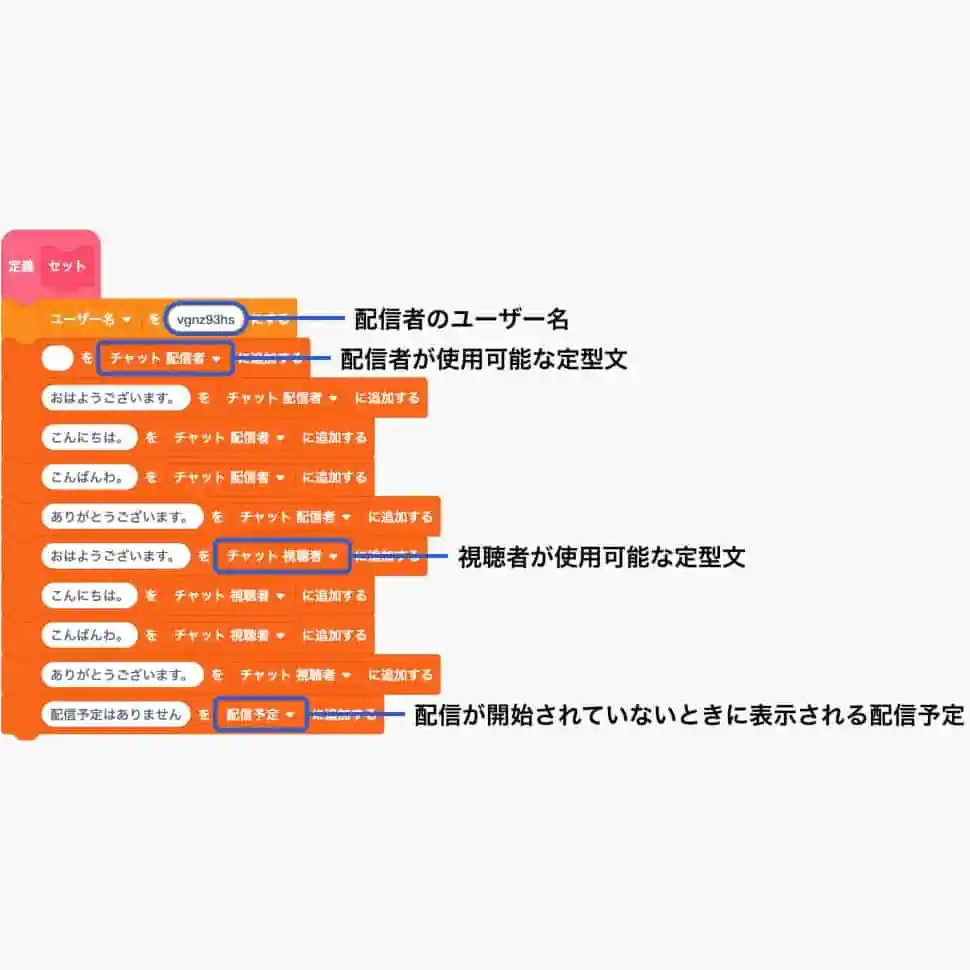
Once the project is remixed, the relevant settings are available. The top Username variable specifies the streamer’s username. Streaming becomes available when this username matches the account running the project. Change it to your own username.
Change the Preset Chat Messages
Starting with the second variable, Chat Streamer contains the preset messages available to the streamer. It is recommended to keep a blank item in the list, as in the default setup, so that the chat can be cleared during a stream.
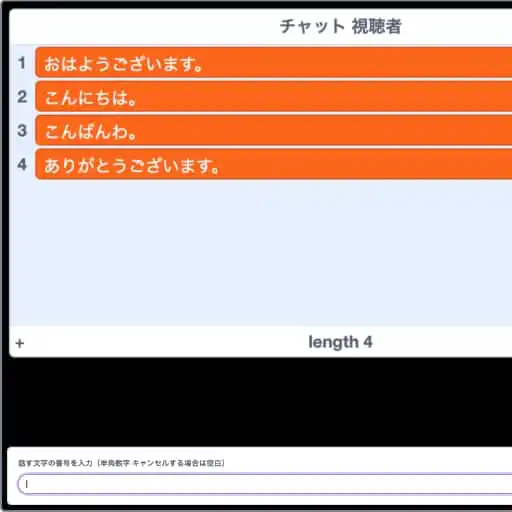
Chat Viewer contains preset messages available to viewers. These messages can be sent even before the stream begins.
Change the Stream Schedule
Stream Schedule is the list shown when no stream is currently live and contains the schedule for upcoming streams.
Change Costumes
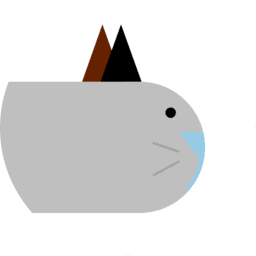
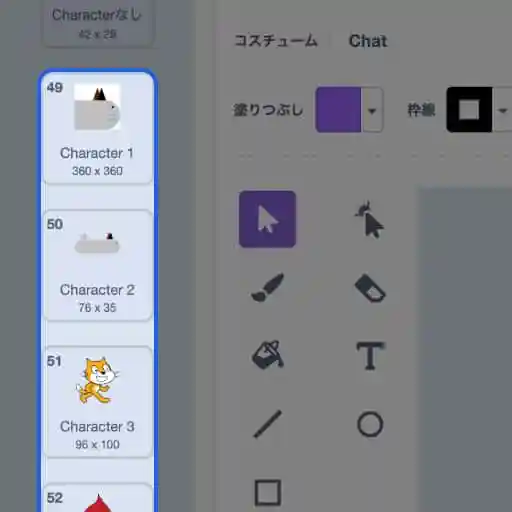
You can change the costumes to display your own character during a stream or show presentation slides.
These character and slide images cannot be updated during a stream, so configure them in advance.
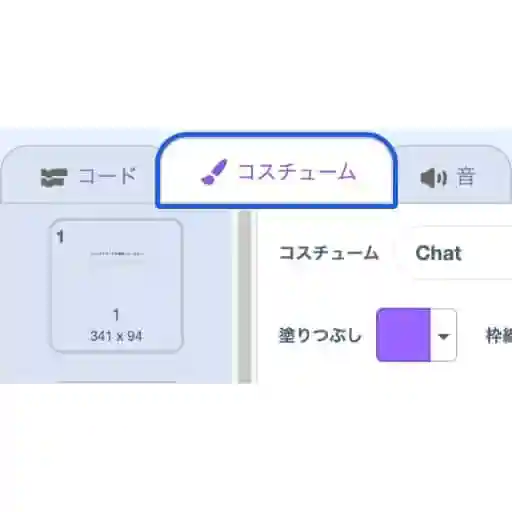
First, select Costumes.
Scroll down to find the character costumes. Adding new costumes can sometimes cause bugs, so update the existing costumes whenever possible.
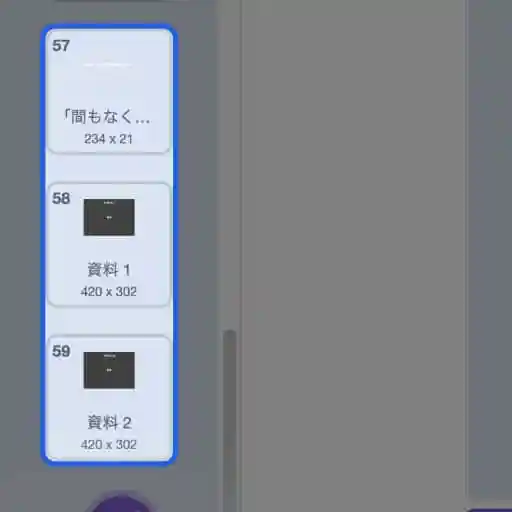
Scroll further to find the costumes labeled Materials. By changing these, you can display any slides you want during the stream.
You can remove existing slides or add new ones. Give each costume a clear name, since this name is used when selecting slides during the stream.
The preparation is now complete.
Stream Settings
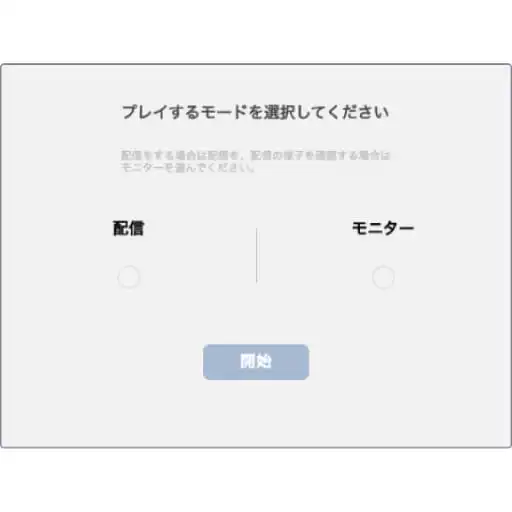
When the program starts, you can choose between Stream and Monitor. Normally, select Stream. To check the stream from the viewer’s perspective, select Monitor and press Start.
Editor Layout
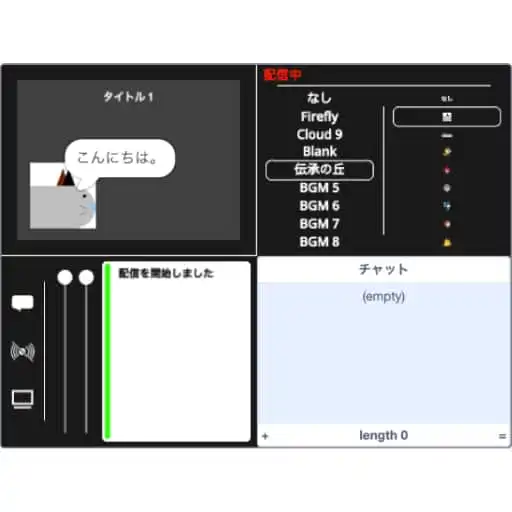
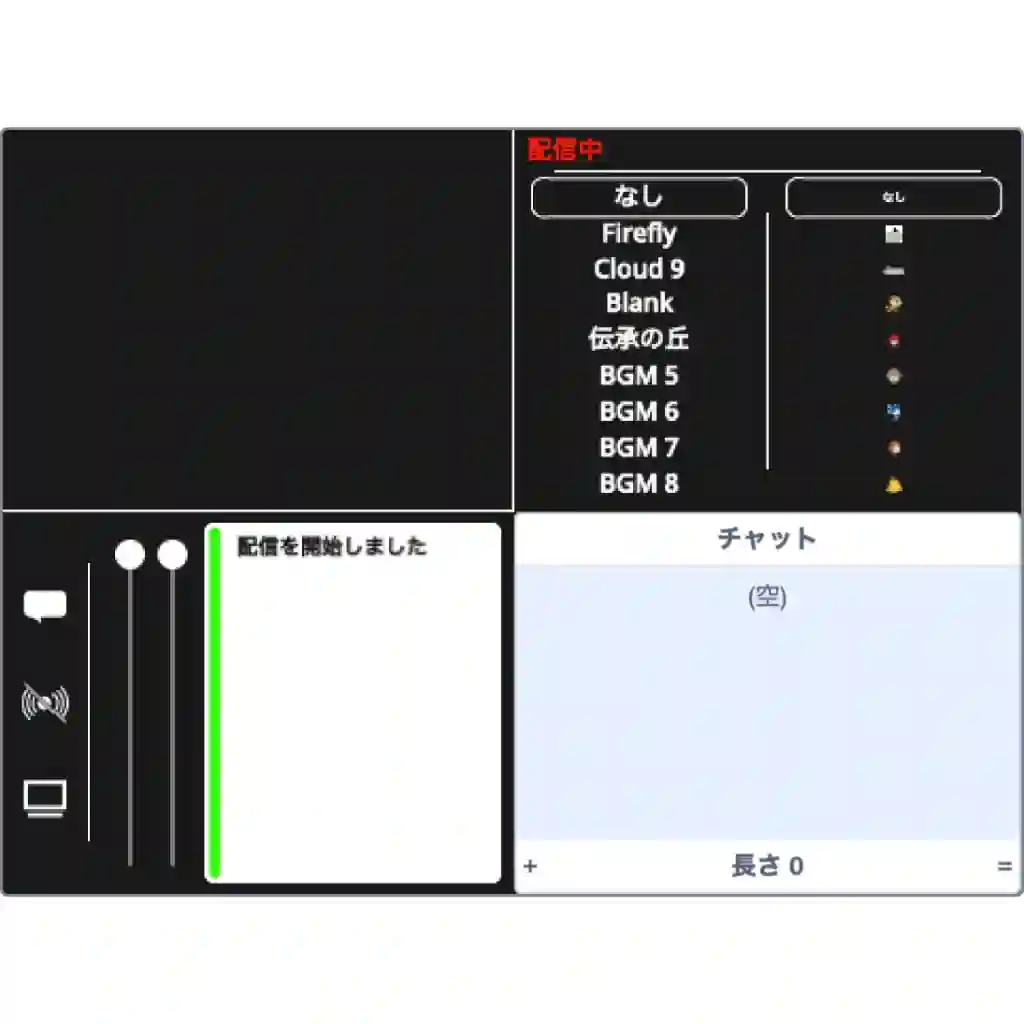
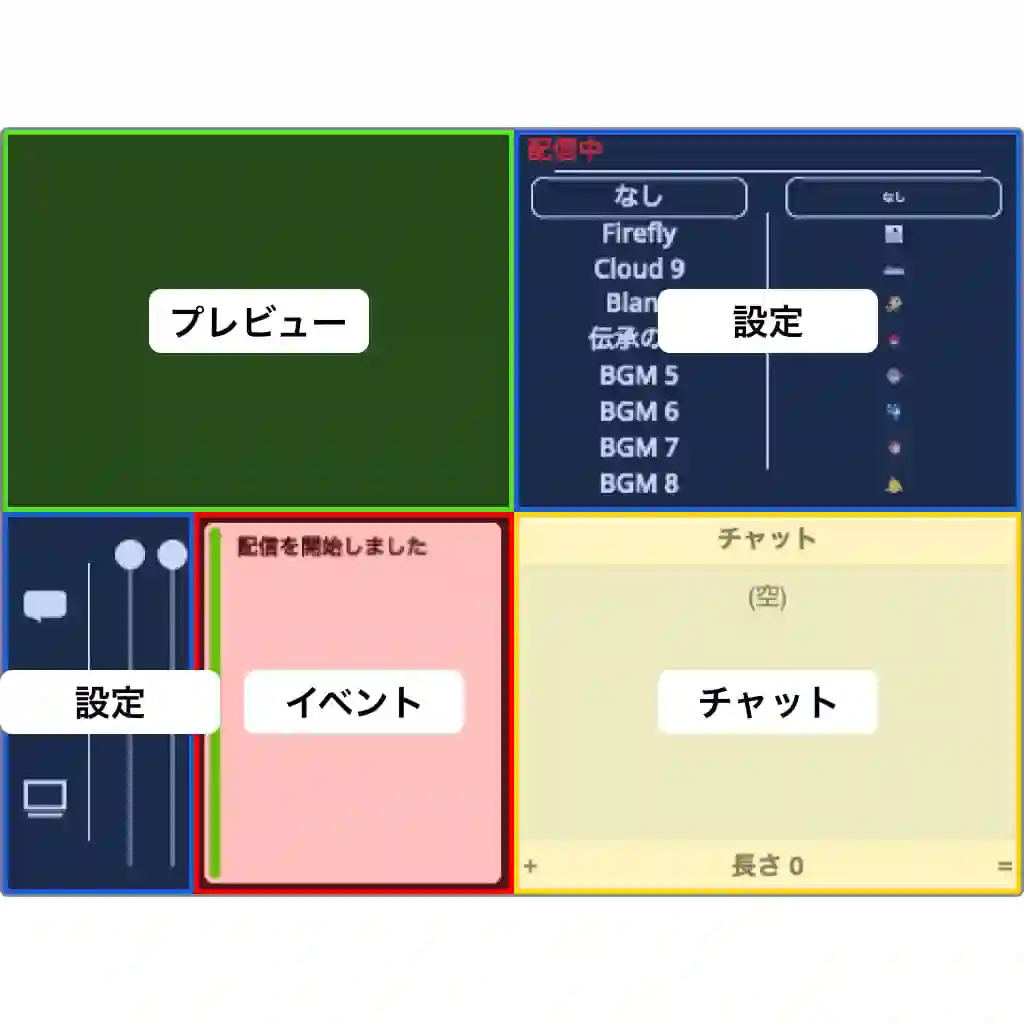
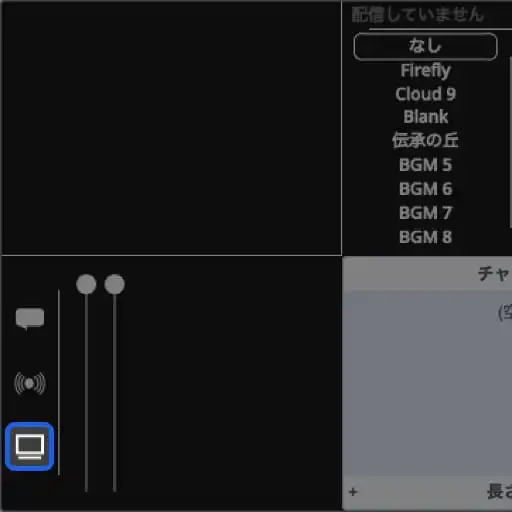
The layout is organized as follows.
Preview shows a preview of the current stream.
Settings lets you change the character shown to viewers, change the BGM, and start the stream.
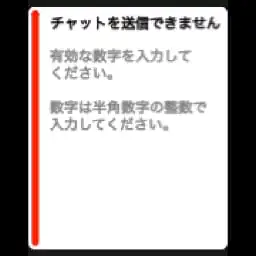
Events shows notifications when the stream starts, a chat message cannot be sent, a viewer joins, or an action fails.
Chat displays messages entered by viewers. Messages sent by the streamer are not shown here.
Change the BGM and Character
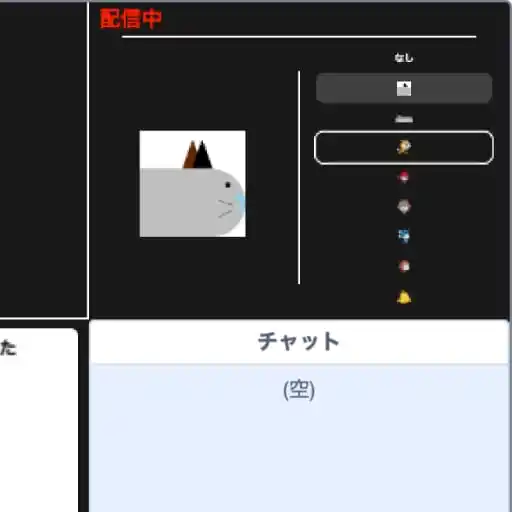
You can change the BGM and character from the upper-right panel. Hover over a character to preview it.
You can drag the character in the preview to change its position.
The BGM starts playing when the stream begins.
Send a Chat Message
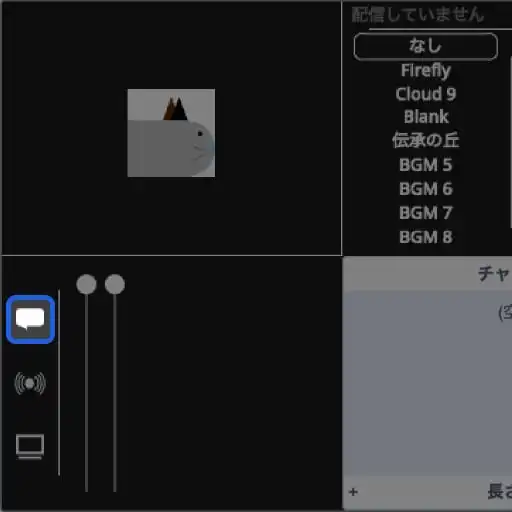
From the settings on the left, press the comment icon. Then select the message you want to send from the preset list.
If sending fails, a notification appears in the Events panel on the left.
Change Slides
From the settings on the left, press the slide icon and select a slide by number from the list.
Slides can be repositioned by dragging them.
Change the Size
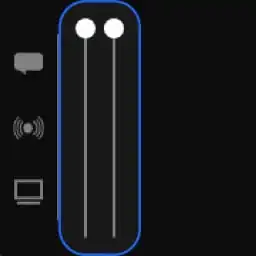
Use the two sliders on the left to change the sizes of the character and slide.
Start Streaming
Press the streaming icon in the settings on the left. A confirmation screen will appear. Press Yes to start the stream, and a stream-start notification will appear in the Events panel.
View Viewer Chat
The list in the lower-right shows messages sent by viewers using the preset messages. Your own messages are not displayed here.
FAQ