
Links
How to Use
Double-tap the bar to add a new schedule. Click an added schedule to edit it.
Use the arrow buttons in the editor to switch between schedules.
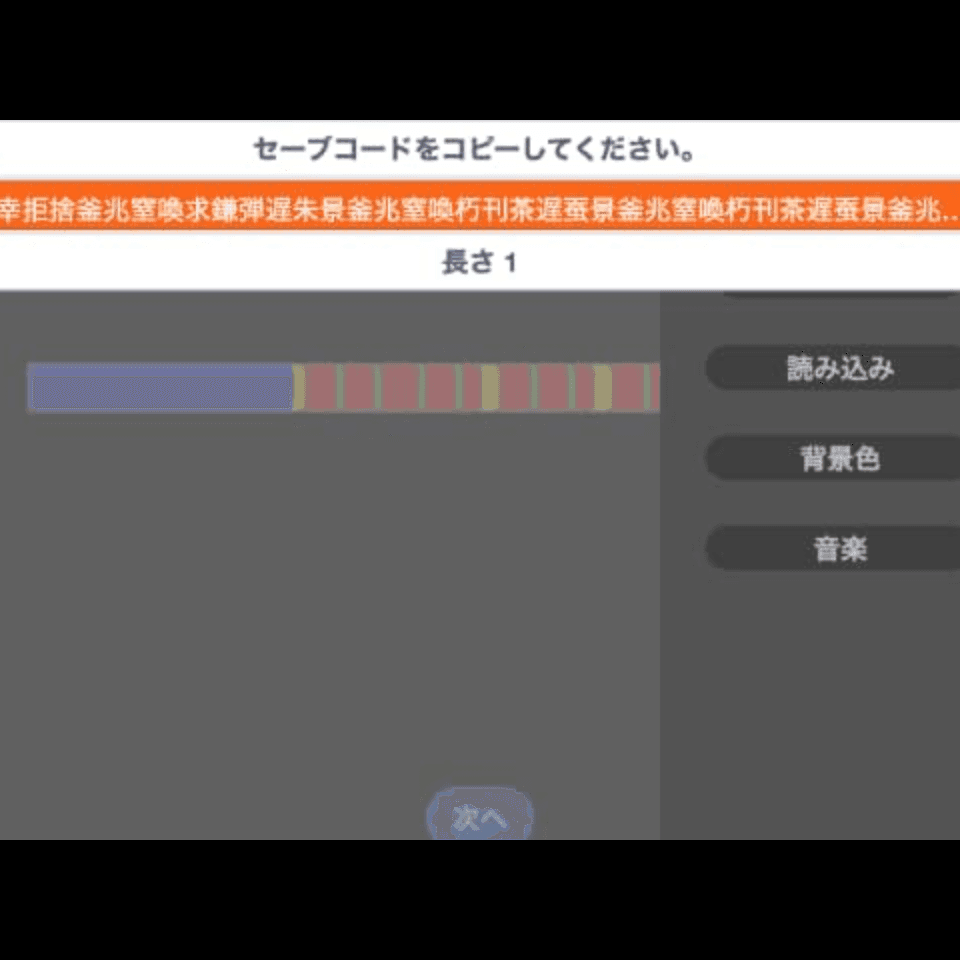
Open the sidebar and press Export to save the schedule you created.
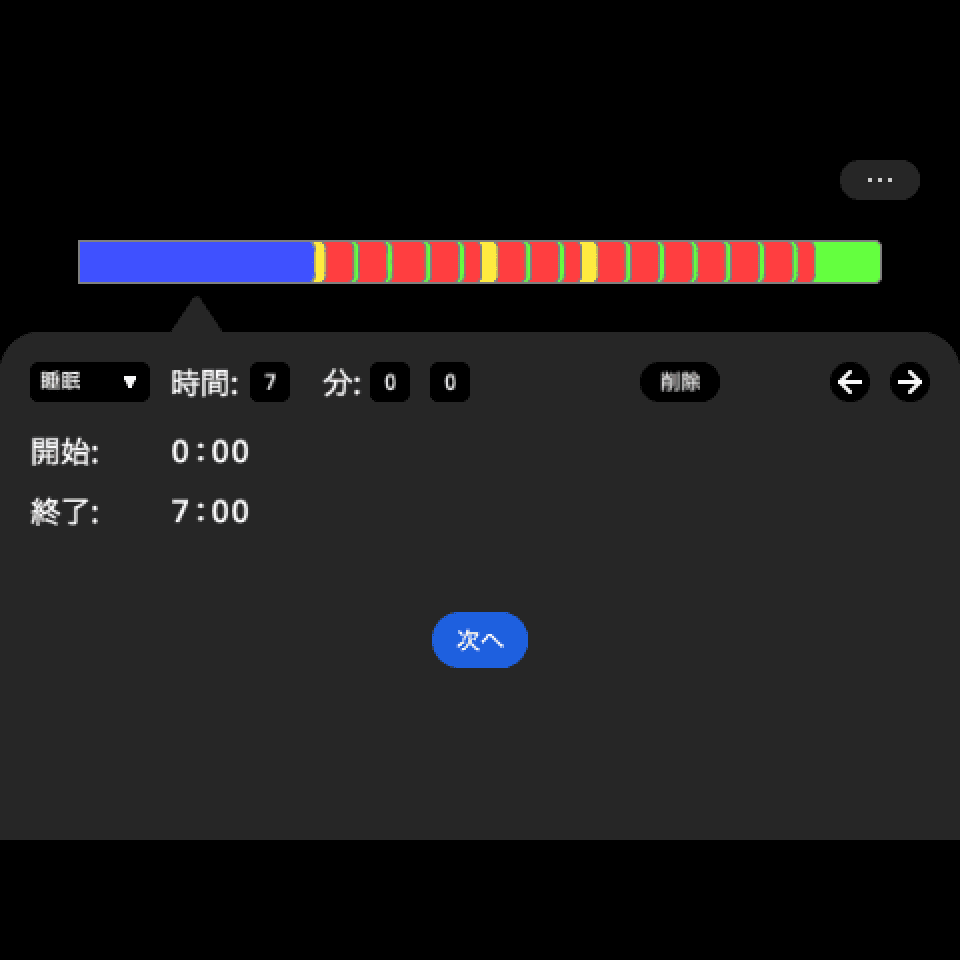
Press Next to run the configured schedule.
When the time is reached, an alert appears. Press Continue to extend the current schedule, or press Done to move to the next one.
If you accidentally press Done, press Undo to go back.
Design Focus
UI
I focused on making every interaction easy to understand. Double-tapping adds a new time slot, and animations make it clear which schedule moved when graphs are added, removed, or reordered. This helps make the interface intuitive.
Each schedule uses a different color so it can be identified at a glance.
Preventing Distractions During Study
Because a visually busy screen can make it harder to focus, the overall color tone and contrast become softer during study sessions, keeping the interface simple and less visually prominent.
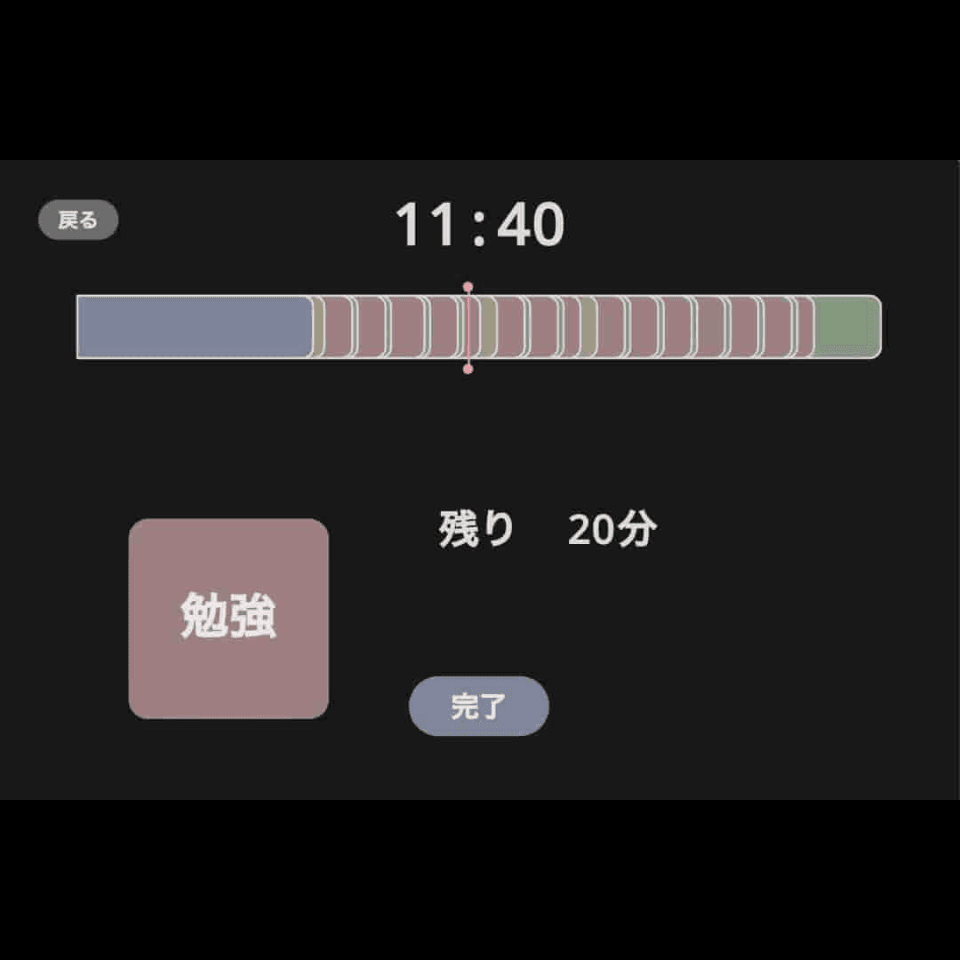
Even if you decide you want to edit the schedule and press Back, the app requires you to hold the button for two seconds before navigating away, giving you a moment to decide whether you really want to make changes.
Other Design Details
If a study task is still unfinished when the scheduled time ends, the alarm can go off while Continue still lets you keep working on the same schedule.
During sleep hours, music stops, and if the mouse pointer is inactive for a certain period, the entire screen automatically becomes darker to make it easier to sleep.
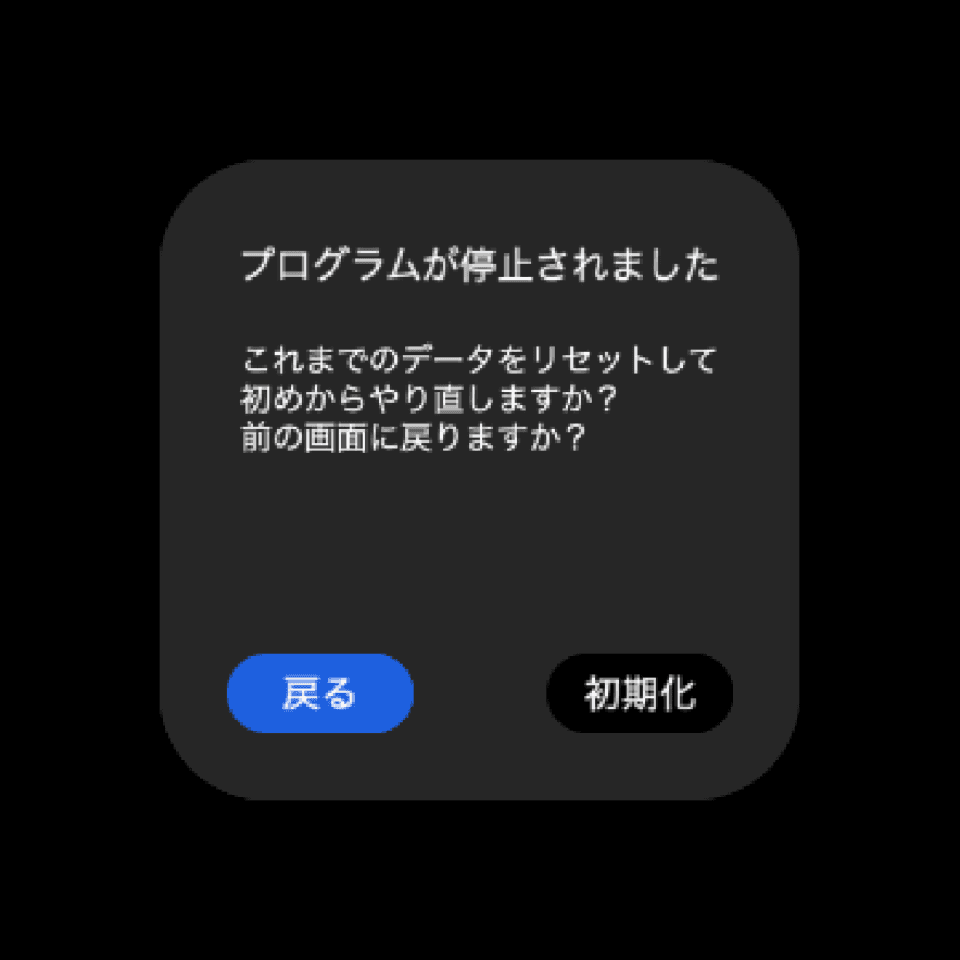
If the program is accidentally stopped, restarting it displays a popup. Pressing Back allows you to continue from the last task.
The save code is converted using kanji characters so that its length is about one third of the original.