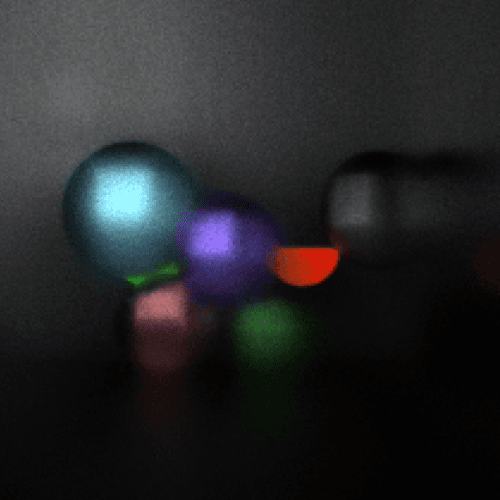
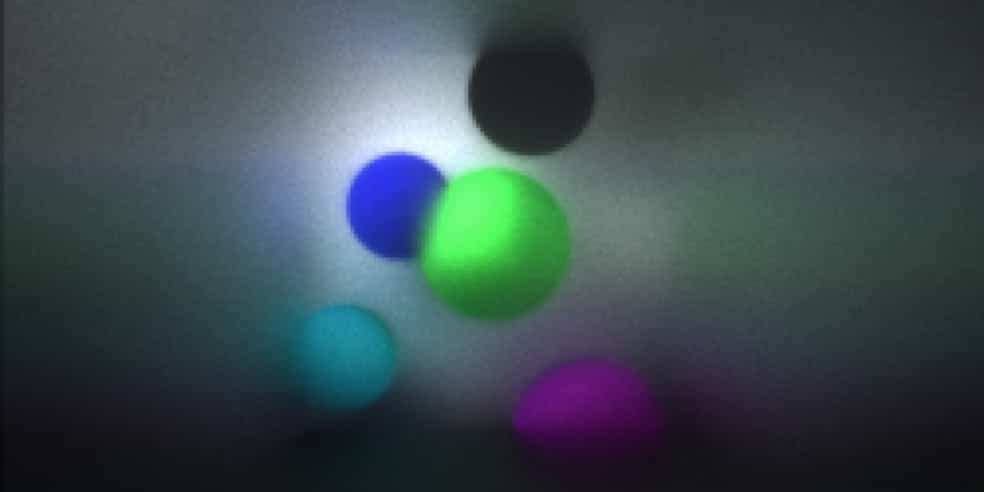
Link
How to Use
Settings
Samples
The number of light rays rendered. More rays increase the computational load, but make the image brighter and cleaner.
Light Speed
Sets the speed of light. Higher values make processing faster, but make collision detection more approximate.
Iris
Sets the camera’s aperture size. The scale is different from an F-number. A larger iris lets more light into the camera, making the image brighter with less noise and increasing the amount of blur when the focus is off. Changing the iris has almost no effect on processing performance.
Focus
Sets the position where the image is in focus. Lower values focus on more distant objects.
Scale
Sets the image scale. Larger values make the image appear more zoomed in.
Render
After configuring the settings, press Render to start processing. It may take some time to finish. The rendering result is displayed above the button.
After rendering is complete, you can press Render again to make the image brighter. When doing so, do not change any inspector settings other than Samples and Light Speed, as changing the others may make the image appear unstable or blurred.
Press Clear to start over from the beginning.
Rendering Method
This project generates images by rendering individual rays of light one by one.
Because light actually originates from the light source, rendering from the light source can produce more realistic images. In my previous Ray Tracing project, however, I rendered from the camera-pixel side to reduce computation. This made the camera pixels the reference point and caused problems representing brightness where light was concentrated around the lens and other areas.
This project renders from the light source as in the real world. This method naturally produces depth-of-field blur. Earlier attempts caused the entire image to become blurry, but I eventually came up with a way to focus rendering on specific parts of the image and implemented it in JavaScript.
Because it is written in JavaScript, it is also significantly lighter than the Scratch version.
For a detailed explanation of the rendering method, see this article (with many abstract explanations).
Updates
0.0
1.0
I improved performance by combining the drawing operations into larger batches.
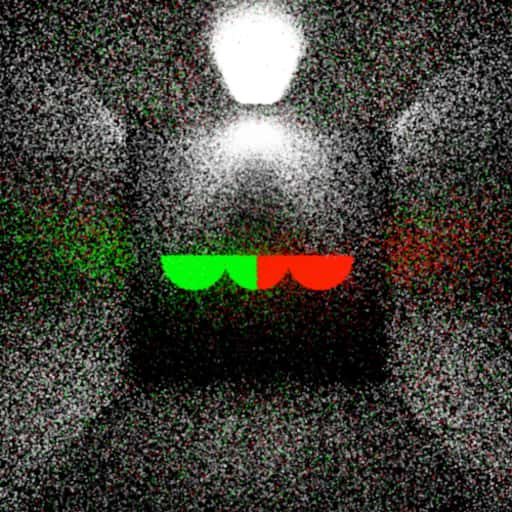
Version 0.0 calculated coordinates from incoming light and drew directly to those coordinates. In this version, each pixel of the predefined image stores color information based on its coordinates. This allows the renderer to use the accumulated rendered pixels to produce an image with less noise. I also added support for changing the output resolution. Lowering the resolution can further reduce noise.
Because drawing is now performed in batches, I was able to adjust sensor sensitivity based on the overall image brightness. Previously, increasing the sample count simply made the image brighter. Now, the renderer can sample random points from the image and automatically adjust its brightness.
1.1
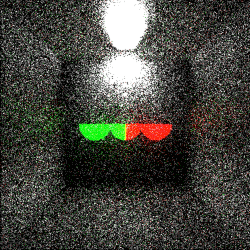
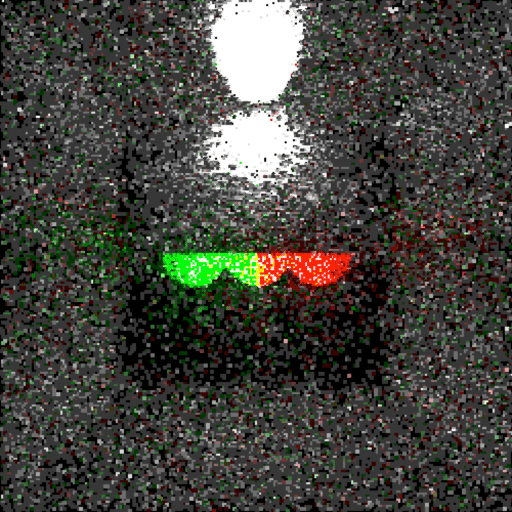
Because this rendering engine renders from the light source, the difference in noise between bright and dark areas was a problem. In this version, darker areas are rendered at a lower resolution, reducing visible grain while preserving more detail than simply lowering the resolution of the entire image.
Pixels below a certain brightness threshold are rendered at half the vertical and horizontal resolution.
1.2
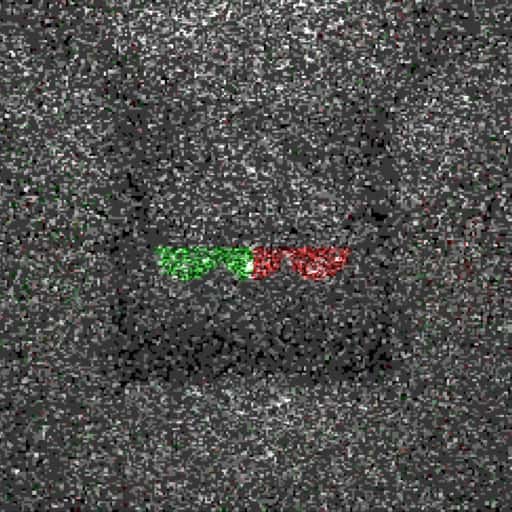
Previous versions generated light directions using x and y coordinates. This caused light to become biased toward the top and bottom of spheres when directions were generated randomly. In this version, light directions are first generated as random positions on a 3D sphere and then converted into angles, producing more natural lighting.
I also added continuous rendering when the Auto Export checkbox is enabled.
2.0
Up to version 1.2, continued rendering could stop partway through or produce corrupted images because of memory limitations. This version addresses that issue so rendering can continue for longer.
Memory usage was also improved, which increased rendering speed.
Specifically, after rendering, the overall image brightness is adjusted based on the brightest pixel so that rendering does not stop because of memory usage.
If you try to close the browser while rendering is in progress, a confirmation dialog is now displayed.
2.1
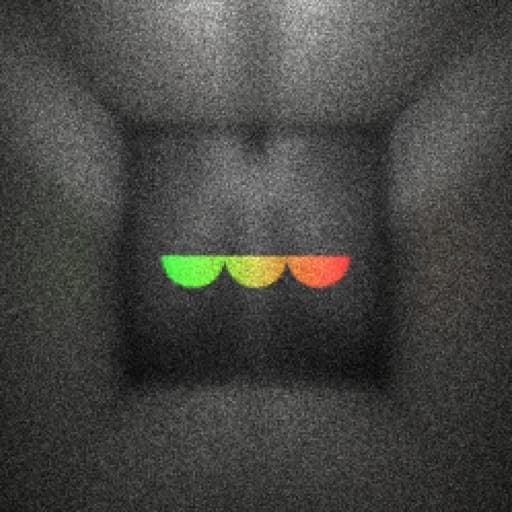
I added support for curved surfaces and improved diffuse-reflection accuracy by rotating the entire scene so surfaces become aligned, processing reflections, and then rotating the scene back.